

- Workato OPA installer: Download the Workato On Premise Agent Installer onto your server from link here.
- Activation code (valid for 1 hr only): The ChemCloud activation code, which will be sent to you by your ChemCloud contact. Make sure to ask for this code once you have downloaded the installer and are about to install it, as the code is only valid for 1 hour.
- The Workato On Premise Agent Installer. Download the installer from the provided link.
- The ChemCloud activation code, which will be sent separately.
Installing the on Premise Agent
Step 1: Start the installation process by double-clicking the installer.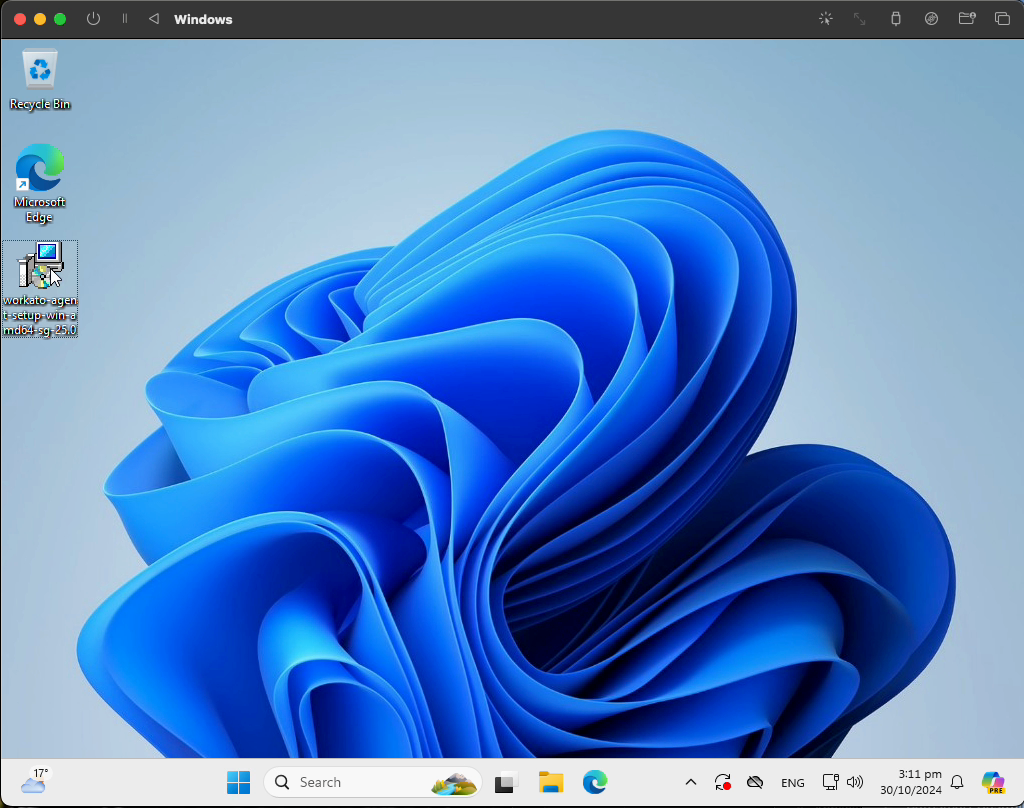 Step 2:
Proceed by clicking next.
Step 2:
Proceed by clicking next.
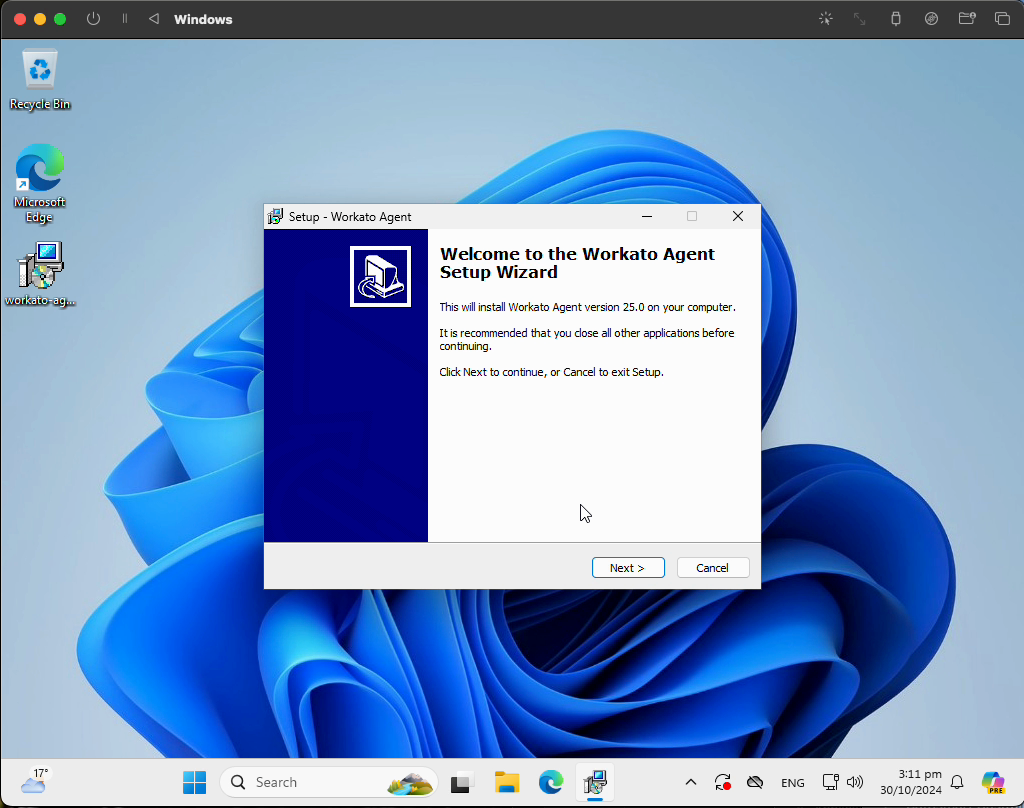 Step 3:
Enter a relevant name for the installation. Make sure the option to install as a Windows service is selected.
Step 3:
Enter a relevant name for the installation. Make sure the option to install as a Windows service is selected.
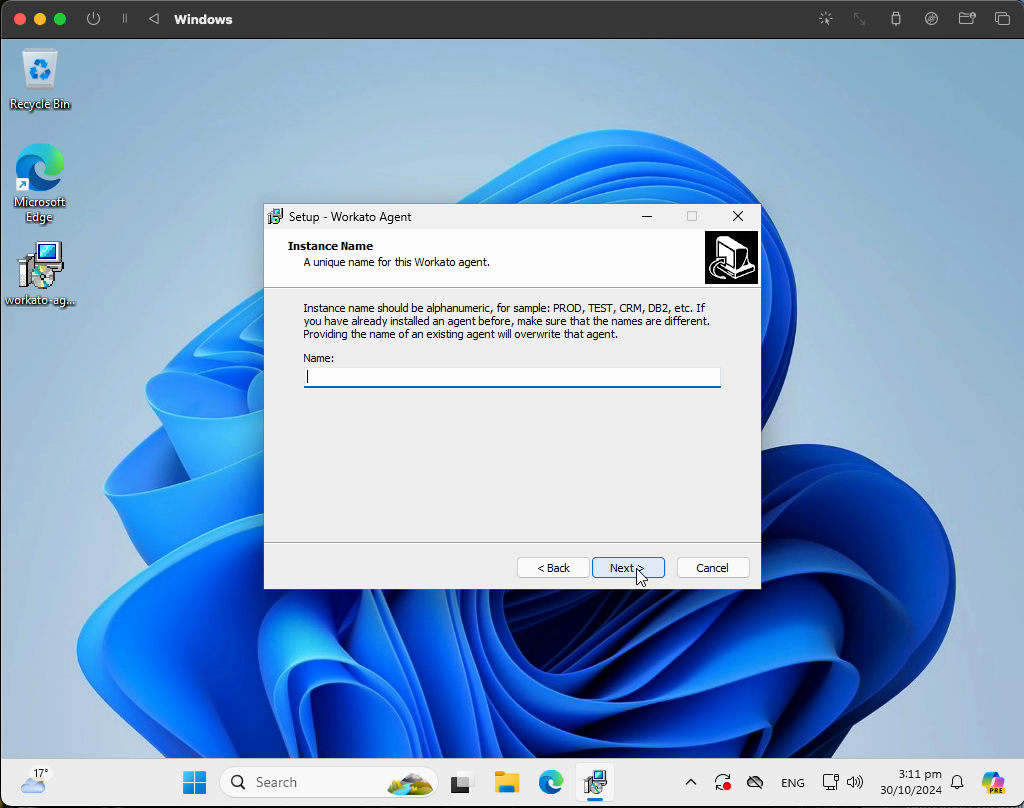 Step 4:
Click on install. An activation code prompt will appear. This code should have been received from ChemCloud.
Step 4:
Click on install. An activation code prompt will appear. This code should have been received from ChemCloud.
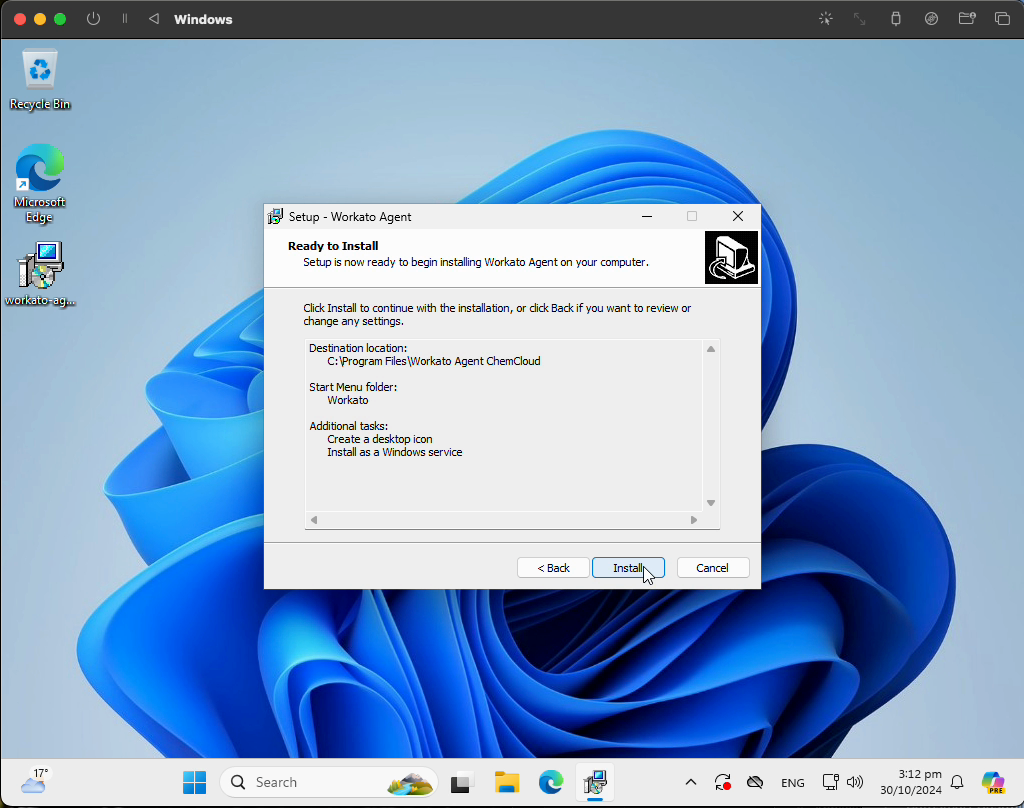 Step 5:
Paste the activation code in the provided field.
Step 5:
Paste the activation code in the provided field.
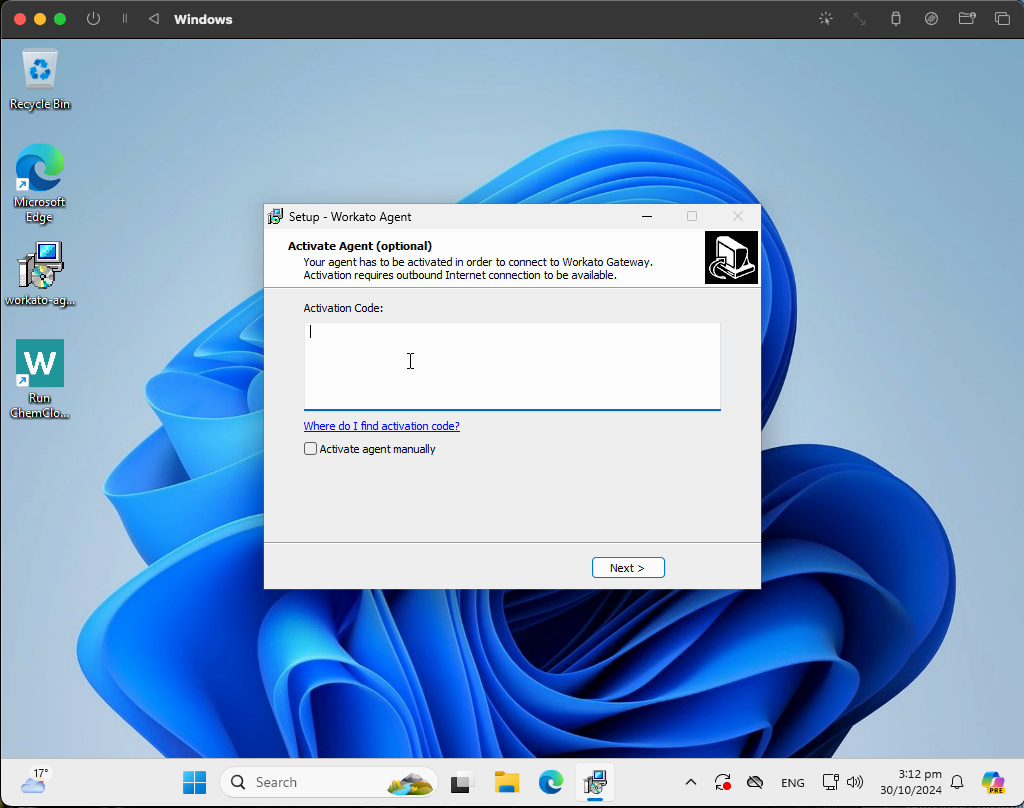 Step 6:
Continue by clicking next.
Step 6:
Continue by clicking next.
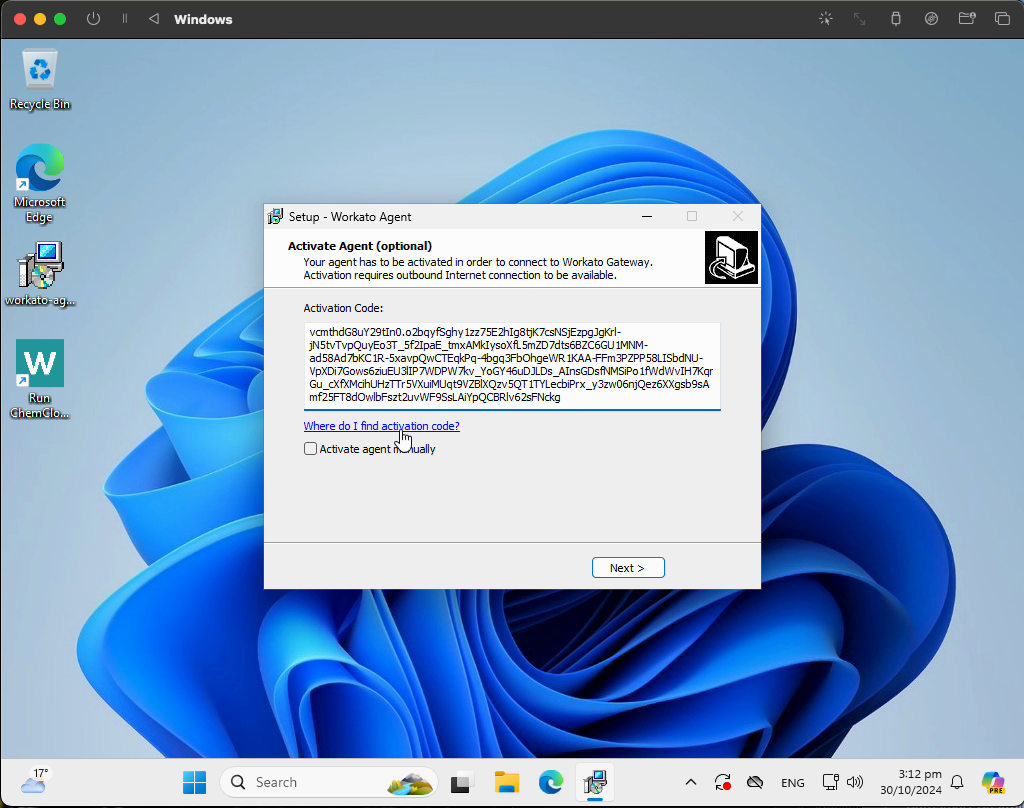 Step 7:
Click finish to complete the installation.
Step 7:
Click finish to complete the installation.
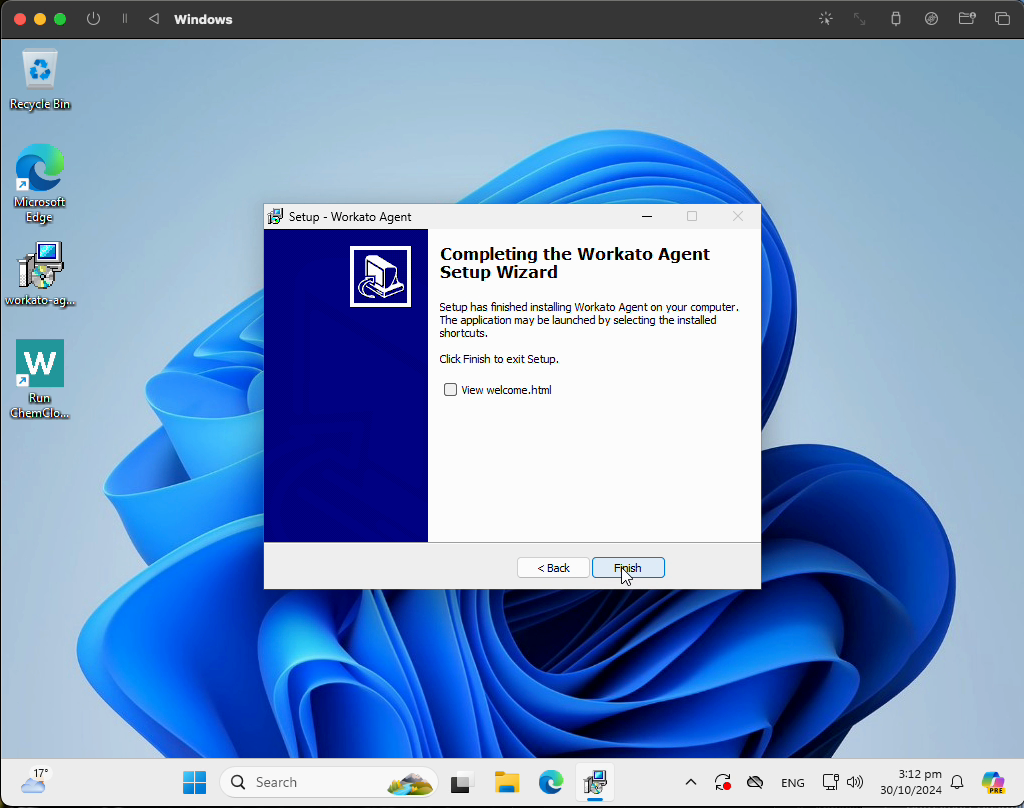
Turning on the Workato OPA
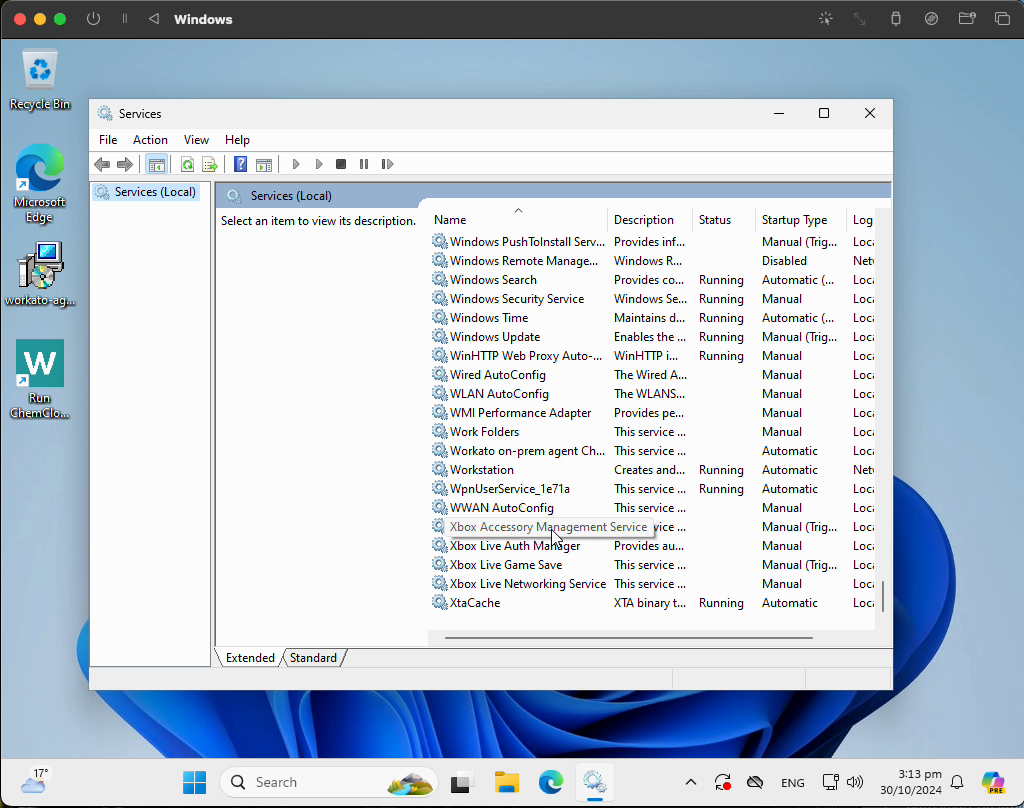
Step 1: After the installation, start the OPA immediately and set it to start on system boot. This can be done by navigating to system services.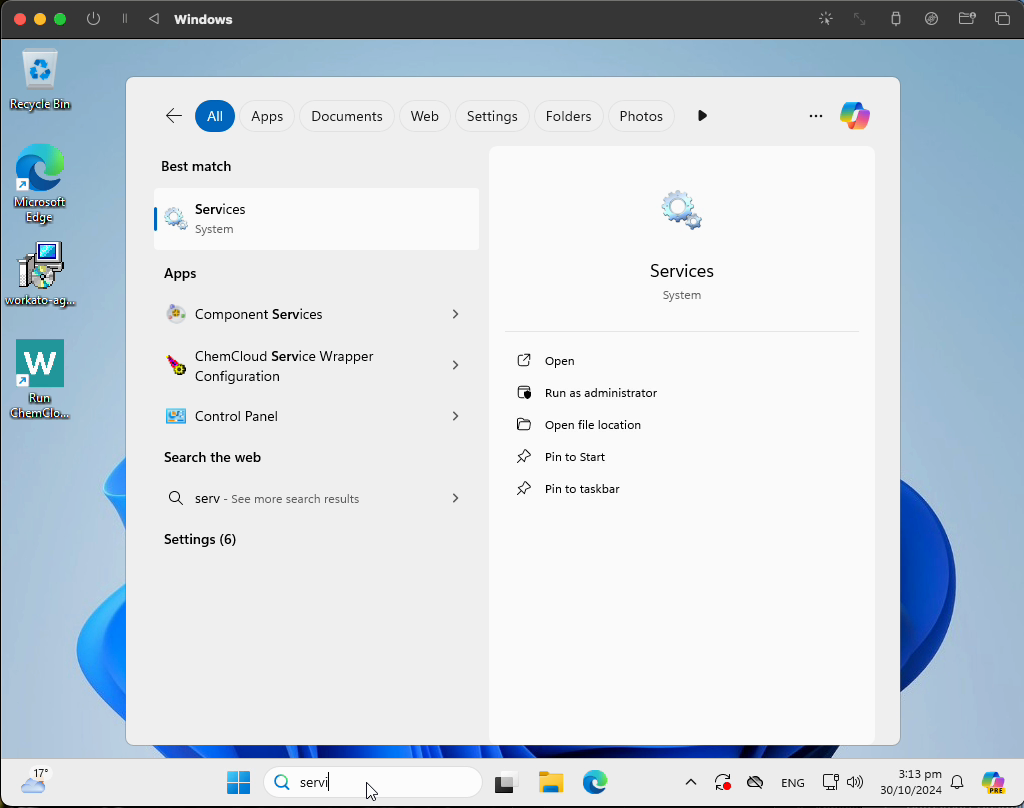 Step 2:
Scroll down to find Workato on-prem agent.
Step 2:
Scroll down to find Workato on-prem agent.
 Step 3:
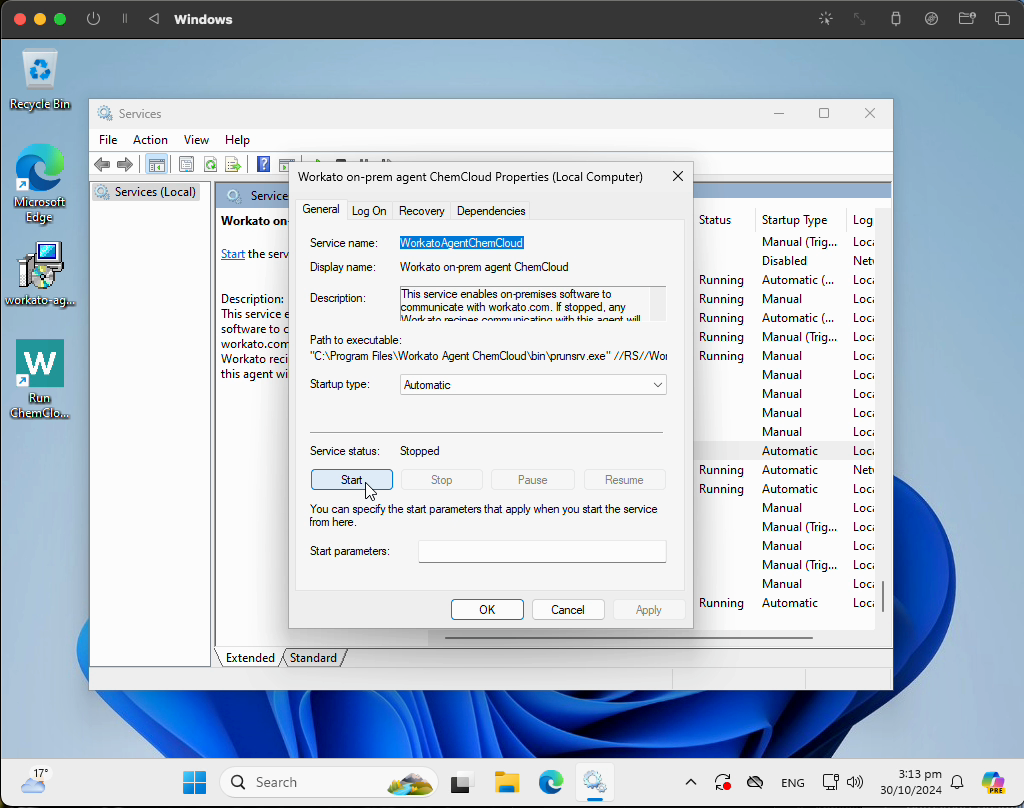
Double-click on Workato and press start. Ensure the Startup type is set to automatic so that the Workato OPA starts automatically when the server restarts.
Step 3:
Double-click on Workato and press start. Ensure the Startup type is set to automatic so that the Workato OPA starts automatically when the server restarts.
 That’s it. You have now setup a secure connection from your server through which ChemCloud can access Ostendo.